

1. What is AI automation (and why manual AI isn’t enough)
Many nonprofits have started using AI, but most are doing it the “hard way”.
Think of standard AI (like typing a prompt into ChatGPT) as fetching water with a bucket. It works. It helps you put out fires or water the garden. But you have to walk back and forth, manually filling and carrying that bucket every single time. If you stop walking, the water stops flowing.
AI automation is building a plumbing system. Once you install the pipes, the water flows exactly where it needs to go, instantly and automatically, without you lifting a finger.
AI automation isn’t about replacing your team. It’s about eliminating the grinding, repetitive work that prevents them from doing meaningful work. Every hour saved on paperwork is an hour your staff can spend building relationships, launching new initiatives and multiplying your impact. That’s the real value.
The problem with “manual” AI
While tools like ChatGPT are powerful, using them manually creates new bottlenecks:
- Inconsistency: One day the AI writes a perfect grant summary. The next day, it hallucinates data because the prompt was slightly different or because your colleague is using a different tool.
- Copy-paste fatigue: You are still the “middleman,” moving data from an email to ChatGPT, then from ChatGPT to your CRM. This is prone to human error.
- It doesn’t scale: You cannot manually type 5,000 personalized thank-you notes into ChatGPT.
Why this matters specifically for nonprofits
You are likely facing three specific challenges that automation addresses:
- The “many hats” syndrome: You have a small staff doing the work of a team twice the size. Automation acts as the “digital intern” that never sleeps, handling the repetitive grunt work so your humans can focus on relationships and strategy.
- Tight budgets: You can’t afford to hire three new administrative assistants. But you can multiply what your current people get done. Automation lets your existing team do far more impact work instead of drowning in repetitive tasks.
- Burnout: Mission-driven staff often leave because they are drowning in paperwork rather than changing the world. Automation removes the drudgery from their desks.
Benefits of AI automation
Here’s what automation actually gives you:
- Time savings. Tasks that take 10 hours a month disappear. Staff can redirect those hours to actual mission work: talking to beneficiaries, developing programs, building relationships, thinking strategically. Automation buys you back your most valuable resource: time.
- Consistency. Every donor gets thanked the same way. Every grant application follows your proven template. No more “I forgot” or “I was rushing.”
- Better results and fewer errors. Humans get tired. Some have trouble following procedures. Automated systems don’t. They follow your best practices every single time.
- Cost savings. Instead of hiring more staff to do repetitive work, you multiply the impact of the team you have.
2. Use cases for nonprofits
There are hundreds of possible uses for automation. Most repetitive work that you do with your computer and follows a specific process can probably be automated (maybe with some steps completed or approved by humans).
The list of automation uses will only continue to grow as AI models become more intelligent and AI agents are added to many tools that we already use daily.
Here are a few examples:
🟢 General
- Meeting intelligence: Automatically recording Zoom or Teams meetings, generating a summary with action items, and emailing it to all attendees immediately after the call.
- Multilingual access: Automatically translating incoming emails or support tickets from beneficiaries into your staff’s native language, and translating their replies back.
- Document digitization: Scanning paper intake forms or invoices and having AI automatically extract the text and put it into a spreadsheet or database.
- Inbox Triage: An automation that reads incoming general emails (info@…), labels them (e.g., “Spam,” “Donor Question,” “Beneficiary Request”), and forwards them to the correct staff member’s folder automatically.
- Compliance and policy monitoring: Automatically scanning new regulations, grant requirements, or industry standards relevant to your nonprofit’s work, then alerting the appropriate team members and suggesting necessary policy updates.
💙 Fundraising and development
- Grant research: AI agents can monitor government websites for new RFPs (requests for proposals) that match your specific keywords and alert your grant writer only when a relevant match is found.
- Donor segmentation: Automatically analyzing donor history to tag them in your CRM (e.g., “lapsed donor,” “potential major gift”) based on behavior patterns, triggering specific email journeys.
- Donation acknowledgment personalization: AI analyzing each donor’s giving history and interests to automatically generate unique thank-you messages that reference their specific past support and connection to your cause (beyond just mail-merge fields).
📢 Marketing and communications
- Content repurposing: You publish a blog post. Automation takes that text, summarizes it into a LinkedIn post, writes three tweets, creates an Instagram caption, and schedules them all to your social media tool.
- Intelligent alerts: Automatically analyzing comments on your posts and mentions to your organization/brand. It detects if there are important questions or complaints and alerts the relevant department.
- Newsletter curation: AI scans industry news sources for positive stories related to your cause and compiles a weekly summary for your communications director to approve.
🤝 Programs and impact
- Intake triage: When a beneficiary fills out a help request, AI analyzes the urgency. “Crisis” keywords trigger an SMS to a staff member immediately. Standard requests are routed to a scheduling queue.
- Success story extraction: Automation reviews monthly field reports to find and highlight specific quotes or stories of impact, saving them to a “marketing assets” folder.
- Field audio to data: Field staff record rambling voice notes after a visit. AI transcribes the audio, extracts key facts (dates, numbers, needs), and fills out the specific fields in your database automatically.
⚙️ Operations and HR
- Onboarding: When a new volunteer signs up, automation creates their email account, invites them to the project management board, and sends them the training handbook, maybe personalized to the volunteer’s interests and experience using AI. Zero admin time required.
- Expense sorting: Staff upload photos of receipts. AI reads the receipt, categorizes the expense, and sends all the relevant data to the accounting software.
- Resume screening: For roles with high applicant volume, AI scans incoming resumes for “knockout” criteria (e.g., “Must have valid driver’s license”). It auto-rejects unqualified applicants and maybe ranks the rest for human review.
- Contract reviews & renewals: A system that scans your new vendor contracts, identifies the expiration date, and creates a task for the operations director 60 days before the renewal deadline to prevent accidental auto-renewals.
3. Types of AI automation
Automation looks different depending on your tech stack and your needs. Not all automation tools are the same; each has its own strengths and best uses.
Here are the main types of AI automation you’ll encounter, with examples for nonprofits:
1. AI chatbot automation (scheduled tasks)
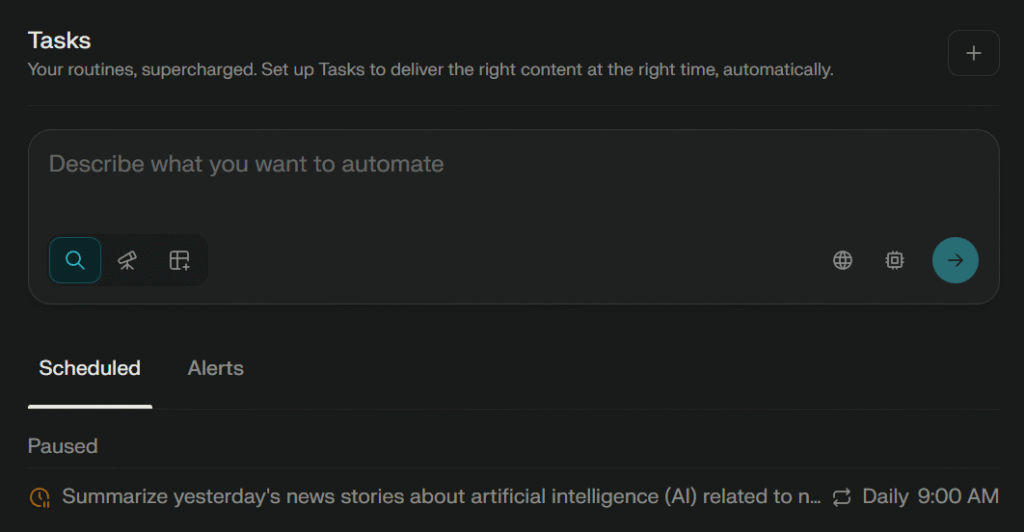
This is the simplest entry point to automation. You use AI chatbots you already know (e.g., ChatGPT, Google Gemini or Perplexity) but instead of chatting with them one at a time, you schedule tasks to run automatically.
How it works: You tell the chatbot “Every Monday at 9 AM, check all my emails and write a summary of our volunteer activity from last week.” Or: “Every Friday at 2 PM, generate a list of the most important news about animal welfare published in the last 7 days.” The chatbot performs these tasks automatically, without you asking each time.
Pros:
- Easiest place to start
- No setup required beyond enabling tools
Cons:
- Limited control
- Can’t handle complex logic or integrate deeply with all your existing tools (like your CRM). You’re essentially automating “do this task repeatedly.”
- Cost: They usually require premium subscriptions, which could get expensive for big organizations with hundreds of users/accounts. It’s quite affordable if your org only use 1 premium account for all scheduled tasks.
ChatGPT and other top AI chatbots are becoming more agentic, so the range of things you can automate without needing external tools will probably keep growing. They are also adding some native integrations with popular tools and/or compatibility with integration frameworks such as MCP.
Perplexity is the most powerful chatbot for scheduled tasks (great at research tasks + many third-party tool integrations), but that might change in the future. If you are already paying a subscription (for ChatGPT or Gemini for example), you should probably start with that.
2. Embedded AI automation (built into tools you already use)
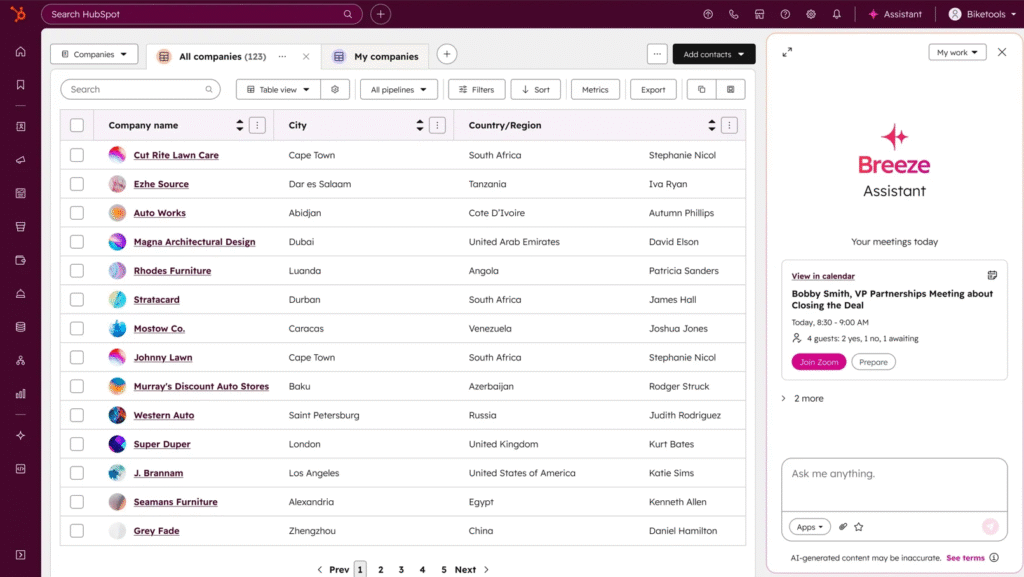
Many tools you already use have AI and automation built directly inside them. CRMs like HubSpot or Salesforce, email platforms like Mailchimp, and ticketing systems all have automation features embedded.
How it works: Sometimes you just have to activate a feature (such as self-updating or deduplicating your CRM records). In other cases you have to set up your specific rules. Example: “When a new donor fills out the contact form on our website, automatically add them to the CRM, send them a welcome email written by AI, and tag them as ‘new prospect.’” All of this happens inside the tool without external setup.
Pros:
- Almost no setup
- Reduces tool switching, copy-pasting info, etc.
- Usually safer for sensitive data
Cons:
- Basic or generic AI models
- Limited customization. You are usually limited by the tool’s automation capabilities and in-house AI models (which may be worse than others available in the market).
3. AI workflows (AI APIs + integration platforms)
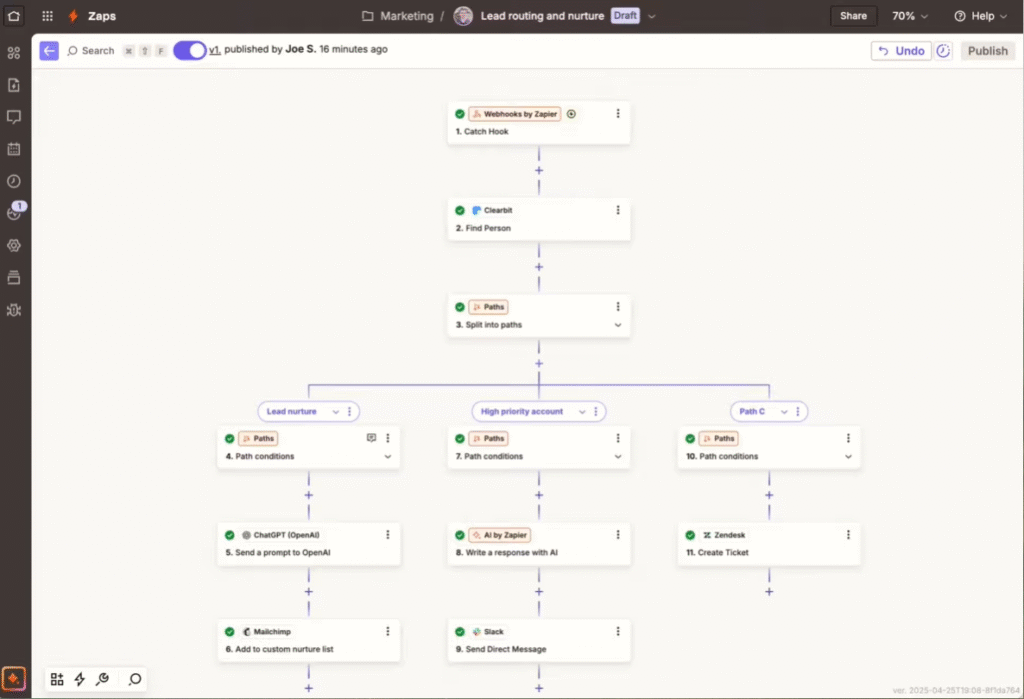
This is where things get more powerful. Workflow automation platforms like Zapier, Make, and n8n let you connect multiple tools together and add AI to the workflow.
How it works: These platforms act like a bridge between your tools. You create workflows (rules) that say things like: “When X happens in tool A, use AI to do Y, then send the result to tool B.” For example: When a volunteer submits an application through your website form → an AI summarizes their skills and interests → the system automatically matches them to your main volunteer roles → sends them a role recommendation email with next steps.
Pros:
- Very flexible
- Works with almost any app. They offer integration with thousands of different tools, so they are probably compatible with all or most of the tools you are already using (CRM, CMS, accounting, email marketing, etc.). And you can integrate lots of different AI tools with them, for many different AI tasks (e.g., analyzing or creating texts, images, videos, audios, websites, presentations, etc.). The combinations for AI automations are nearly endless and you are never tied to a specific tool or model.
Cons:
- More complex to configure than the options mentioned above, but doesn’t require coding knowledge or very technical skills. For basic automations, you just have to understand how the platform works and maybe read a few guides.
- Most integration platforms offer free plans, but they can get expensive if you are using them for tasks that will be completed thousands of times per month (they usually charge per task or step completed).
- Can get messy if poorly documented
- AI mistakes must be considered (validation needed)
The main integration platforms are:
- Zapier is the most popular and user-friendly option, but also the most expensive.
- Make is a good alternative and a bit cheaper.
- n8n is quite powerful and can be nearly free (if you run the open-source version on your own server, you just have to pay for the AI APIs), but it’s also more difficult to install and use.
But there are many more (Microsoft Power Automate, Zoho Creator, ActivePieces, Pabbly Connect, etc.). The ideal tool depends on your budget, the number of tasks you want to automate, the tools you need to integrate, and your tech skills.
4. AI agents (multi-step autonomous systems)
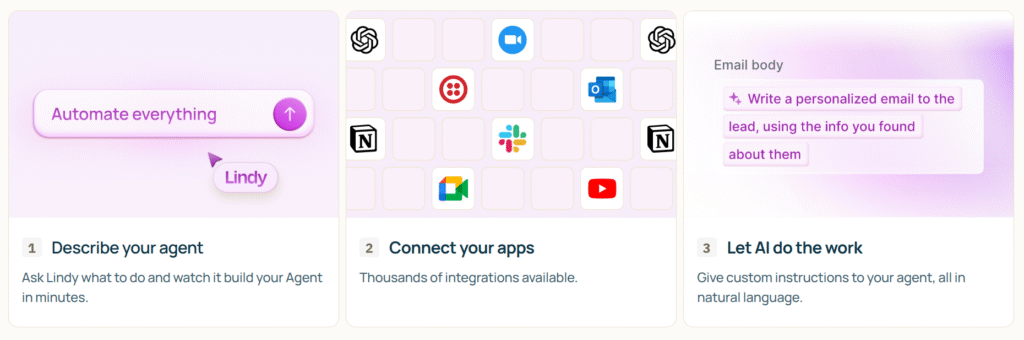
AI agents are the frontier. Unlike the previous types where you configure specific steps in advance, agents use AI reasoning to understand a goal, plan steps, execute them, and adapt if needed. All autonomously (although they might be configured to ask for human approvals for certain steps).
How it works: You define a goal: “Find donors at risk of lapsing and send them a personalized re-engagement message.” The agent figures out the steps on its own: search donor database for engagement patterns, identify at-risk donors, research what motivated their past giving, draft personalized messages, send them, track responses, and adjust future outreach based on results.
Pros:
- Very powerful
- The best (sometimes only) option to automate unstructured multi-step work
- Can run long tasks without constant supervision
Cons:
- Usually more expensive than the other options. SaaS solutions can be quite affordable (many have limited free plans or cost under $50 per month) but for complex or frequent uses they can get quite expensive.
- Harder to control. This is the main issue: reliability. Agents can deliver good results in very specific tasks, but they can be awful for others. They can also be difficult to control (they can give very different results for tasks that seem similar to us, they open more security risks, etc.).
This can be very easy or very hard to configure. There are some online services (SaaS) that allow you to create simple agents with zero coding and in a couple of minutes, just describing what you want to achieve. On the other side of the spectrum, there are very powerful open-source solutions that require custom coding, running your own servers, performing evaluations and security controls, etc.
Agents are the future of AI according to most experts, but right now they are not the best option for many automation tasks.
AI agents are already huge in coding/programming, with tools like Cursor and Claude Code changing how most people work in that sector already, but they are still small/experimental in other sectors.
ℹ️ Note
AI agents” is a buzzword used everywhere right now and could be a bit confusing when comparing tools. It can mean very different things in different tools: From really complex autonomous systems to predetermined workflows with a few simple AI tools. This is not a bad thing, sometimes predetermined steps are all you need (and could reduce costs and risks). But it’s something to consider when comparing different “AI agents”.
5. AI browsers
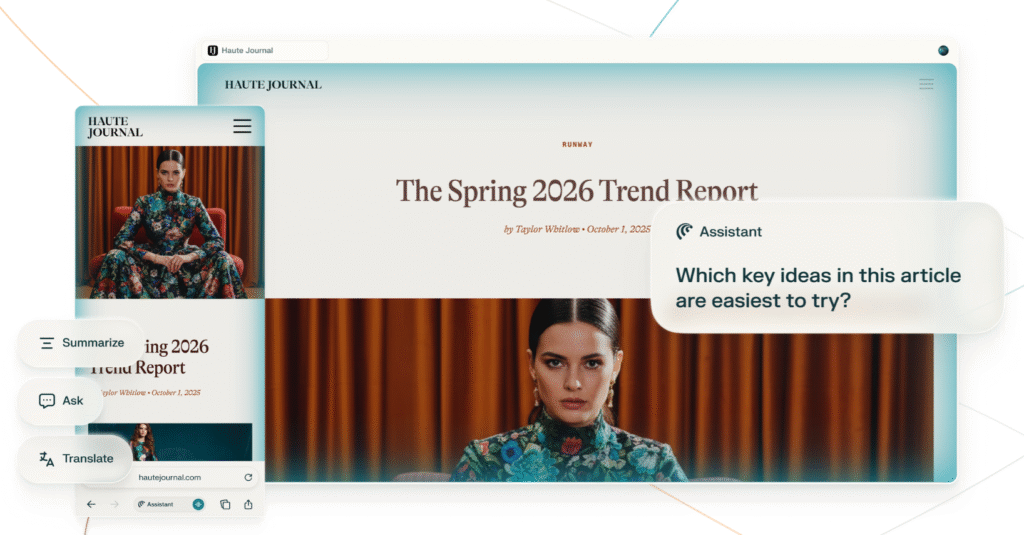
A newer category: AI-powered browsers that can automate your web browsing and data collection tasks.
There are already a few AI browsers: Perplexity Comet, ChatGPT Atlas, Dia, etc. There are also many AI extensions for Chrome and AI features on other traditional browsers (which are more limited than AI browsers in general, but might be better for some simple use cases).
How it works: You open an AI browser or extension. Tell it to “extract all nonprofit grant opportunities from these five websites and organize them by deadline”. The browser visits the sites, reads the content, extracts the info, and formats it for you.
Pros:
- Easy to set up
- Can do certain things that are very difficult or impossible with other automation tools (e.g., analyzing or summarizing pages that require a login)
- Can turn online information into structured data
Cons:
- Sometimes frustrating. Current AI browsers are usually quite slow (they have to think again after every step, click, scroll, etc.) and can get lost along the way even for simple tasks.
- Limited in what actions they can take safely. They can introduce new security risks (like the lethal trifecta).
AI browsers will probably improve, but right now we recommend them only for certain tasks that you can’t do with other tools. You should probably use them only on trusted websites and/or with all “risky features” deactivated (don’t let them access your private info, emails, etc.).
If you want to use them to access sensitive info, review carefully what those browsers/extensions can do with your data (check their documentation, terms of use, privacy policy, reviews, etc.). Avoid using the ones that store your data and don’t seem very reliable (even if they don’t do anything sketchy with your data right now, they might get hacked or bought in the future).
Comparative table
| Type of automation | Best for | Skill needed | Flexibility | Risk level | Typical setup time |
|---|---|---|---|---|---|
| AI chatbot automation | Personal productivity, content summaries | Low | Medium | Low | Minutes |
| Embedded AI automation | Single-tool tasks, simple automation | Low | Low | Low | Minutes |
| AI workflows | Multi-tool processes, custom needs | Medium | High | Medium | Hours |
| AI agents | Complex research, multi-step projects | Medium | High | High | Hours to days |
| AI browsers | Web research, data gathering | Low | Medium | Medium | Minutes |
Which type should you start with?
Most nonprofits should start here:
- If you’re brand new to automation: Test the AI and automation features in the tools you already use. No additional cost, minimal learning curve, quick wins. Get a feel for what automation can do.
- If you want more power: Move to AI workflows through Zapier or Make. Easy to learn, great ROI. Start with simple tasks, try more complex processes later.
- If you have specialized needs: Consider AI agents (SaaS, not open-source, unless your organization has a good IT team). Zapier, Make and n8n also offer their own agents now, which are not the most powerful in the market but could be enough for many organizations that want a bit more flexibility without increasing the complexity and cost significantly.
ℹ️ Note
You don’t need to use all five types. Most nonprofits will use only one or two, and that’s completely OK. The goal is to reduce manual work, not to build a complex tech stack.
4. Implementation checklist
This is a step-by-step process you can follow for any AI automation project. Use it like a recipe, feel free to adapt it to your organization. But try to always follow the same steps when implementing new automations.
Discovery and planning
- Spend one week having your team note repetitive tasks they do, how long each takes, and how often they happen.
- Put all the tasks in a simple spreadsheet and sort by which ones eat the most time each month.
- Pick ONE task to automate first (something high-impact but straightforward).
Risk assessment and preparation
- Write down what could go wrong if this automation makes a mistake. If the answer is “something really bad” add human review to your plan or go back to the discovery step to find less risky options.
- Decide your accuracy standard: “I’m comfortable with this if it’s correct ___% of the time.”
- If this automation touches sensitive data or sends external communications, get your ED or board approval before proceeding.
Tool selection and setup
- Research tools that could handle this. Maybe use AI tools to help with research their features/prices/etc and compare (Perplexity, Gemini Deep Research…). Look for nonprofit discounts.
- Try free trials with test data (never real data yet). You can ask AI to generate test data (some AI chatbots can even generate an spreadsheet directly). Register and compare results.
Testing and refinement
- Create 10 realistic test scenarios including a few weird edge cases. Ask ChatGPT for ideas if unsure.
- Run them through your automation and note what doesn’t work right.
- Fix the major issues and re-test. Get it to where you’d feel comfortable using the outputs.
- Have someone else spend 15 minutes trying to break it. Fix anything important they find.
Pilot launch
- Define a small pilot: which dates, which people or data, and what “success” looks like.
- Launch the pilot and check outputs daily for the first week, then a few times for the next weeks.
- Let affected people know you’re testing something new and welcome their feedback.
Measurement and documentation
- Track basic metrics for 30 days: time saved, number of uses, errors caught, and whether your team actually likes it.
- Decide: keep it, adjust it, or scrap it.
Rollout and next steps
- If it’s working, do a quick training for your team. Share also a simple one-page guide: what it does, how to access it, who manages it, and how to fix common problems.
- Assign someone to own it and someone else as backup. Put their names in the documentation.
- Set a reminder to check on it in 90 days to make sure it’s still running well.
- Go back to your task list and pick the next automation to tackle.
5. Common risks and pitfalls (and how to avoid them)
Aside from the usual risks of any AI tool (hallucinations, robotic writing, bias, data privacy, cybersecurity, etc.), automation might add some new risks or issues:
- Wrong problem solved. You automate what’s easy instead of what matters most. Before building anything, ask: “If this took zero time, would it actually move the needle?”. Focus on genuine bottlenecks.
- Automating chaos. Applying automation to a broken or messy manual process just creates errors at high speed. Avoid this by mapping and simplifying the workflow on paper first. Never automate a process you haven’t optimized.
- Scope creep paralysis. Simple projects balloon into massive overhauls that never launch. Finish one complete automation before starting the next. Write down “nice to have” features for later.
- Staff resistance and distrust. The team doesn’t understand automation or feels threatened. They don’t trust it, so they fight it. Avoid this by involving staff in planning from the start. Be honest about job security. Train thoroughly. Get feedback and show results quickly.
- Hidden or growing costs. API costs (like OpenAI) or usage-based subscriptions can spike unexpectedly during high-volume campaigns. Avoid this by setting “hard limits” or budget caps in your admin settings to prevent runaway billing. Consider also hidden costs like setup time, training, data cleanup, and maintenance.
- No rollback plan. Automation goes wrong and you can’t quickly revert to manual processes. Document manual procedures as backup and keep them accessible even after automating.
- Dependency risk. If a niche AI tool shuts down or increases their price tenfold, your operations could halt. Avoid this by documenting your workflows clearly so you can rebuild them in a different tool if necessary. If possible, have a plan B ready too.
- No clear ownership or maintenance: Automation works for a month, then breaks. Nobody knows who owns it or how to fix it. System stays broken. Avoid: Assign one primary owner and one backup for each automation. That person checks it monthly. Document troubleshooting steps. Keep a log. Store credentials in shared password managers.