1. Understanding Custom GPTs
What are Custom GPTs?
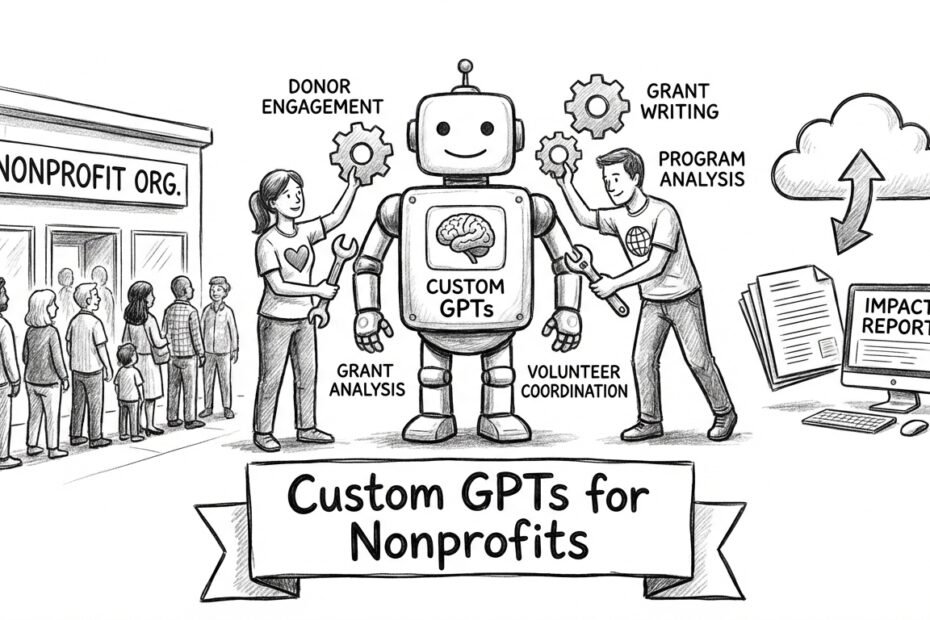
A Custom GPT is a personalized version of ChatGPT that you configure for a specific purpose. Think of it as hiring a specialized assistant who already knows your organization, follows your guidelines, and performs specific tasks exactly the way you need them done.
Unlike the standard ChatGPT that starts fresh with every conversation, a Custom GPT can come pre-loaded with:
- Your organization’s background and mission
- Specific instructions on how to respond
- Your preferred tone and style
- Relevant files and documents it can reference
- Custom capabilities (like web browsing or image generation)
What are Gemini Gems?
Google calls “Gems” to their version of Custom GPTs. Gems are free to create and share, while Custom GPTs are a paid feature, so in general they are a better option.
We will talk mostly about Custom GPTs in this guide, but unless we say otherwise, everything is the same for Gemini Gems.
The setup is very similar, but GPTs let you configure also “Capabilities” and “Welcome messages” if you want. If you are not sure, we recommend adding all capabilities (so the AI decides which tools to use) and no welcome messages (they can be confusing, better to include a brief usage guide in the “Description” field).
Why build Custom GPTs?
- Efficiency and consistency: Instead of typing the same context and instructions every time you use ChatGPT, your Custom GPT remembers everything. For example, if you regularly draft donor thank-you letters, you can create a GPT that already knows your organization’s story, tone, and format preferences.
- Democratizing AI: Not everyone on your team will become an AI prompting expert, and that’s okay. A well-designed Custom GPT lets anyone on your team get quality results from AI without needing to craft perfect prompts.
- Reducing errors and maintaining consistent standars: When multiple team members use ChatGPT differently, you get inconsistent results. A Custom GPT ensures everyone gets outputs that align with your organization’s values, brand style, tone, and quality standards.
Use cases for nonprofits
Custom GPTs can be used basically for anything that ChatGPT can do. But they make more sense for tasks that are repetitive and require a lot of context or a consistent voice.
Here are some examples for nonprofits:
- Donor communications: Draft personalized thank-you letters, donation acknowledgments, appeal letters, lapsed donor re-engagement emails, and major gift proposals. All in your organization’s voice and with your program details already built in.
- Grant writing: Assist with drafting narrative sections, tailoring boilerplate language to specific funders, summarizing program outcomes, or generating first drafts of LOIs (Letters of Intent) based on RFP requirements.
- Impact storytelling: Turn raw program data, staff notes, or client intake information into compelling impact stories for reports, newsletters, or social media.
- Communications: Generate platform-specific posts (Facebook, Instagram, LinkedIn), campaign copy, event promotions, or email newsletter content that matches your brand voice and messaging priorities.
- Program documentation: Help program staff write case notes summaries, create client-facing materials, draft workshop outlines, or produce reports for internal use.
- Volunteer and staff onboarding: Answer common questions about your organization, explain policies and procedures, or guide new team members and volunteers through key information.
- Board and leadership support: Summarize meeting notes, draft board communications, or help structure strategic planning documents.
- Advocacy and policy: Draft action alerts, public comments, op-eds, or talking points for meetings with elected officials, adapted to different audiences and levels of formality.
- Internal knowledge management: Serve as a searchable, conversational interface for your organization’s documents so staff can get answers quickly without digging through folders.
But these are just some general ideas. The most effective GPTs for your organization may come from your specific frustrations: tasks that take too long, produce inconsistent results, or create a bottleneck for your team.
Pros and Cons
Advantages:
- Time savings: Set up once, use repeatedly without re-explaining context
- Quality control: Ensures consistent tone, style, and accuracy across outputs
- Team accessibility: Makes AI useful for team members with varying tech skills
- Knowledge preservation: Captures institutional knowledge in a reusable format
- Specialization: Creates expert assistants for specific nonprofit functions
Limitations:
- Cost: Creating your own GPTs requires a ChatGPT paid subscription. But it’s free to create and share Gems on Google Gemini, so it’s a better option if you don’t have a ChatGPT subscription or are already using Google/Gemini services.
- Initial time investment: Could take +30 minutes to configure & refine a great GPT.
- File size limits: Can only upload a certain amount of files for the GPT Knowledge Base. Less than in other AI tools like NotebookLM.
- Privacy considerations: Be cautious about uploading confidential or sensitive information, even more if you are going to share your GPTs with external users. Your GPTs might share data from their instructions or files, even if you instruct them not to do that.
Alternatives to consider
Before building a custom GPT or Gem, consider whether these alternatives might better suit your needs:
- Standard ChatGPT conversations: Saving your best prompts in a document and copying them when needed in ChatGPT (or your favourite AI chatbot) might suffice for certain tasks. This works well when tasks vary significantly each time. It also allows you to use some features that might not be available inside custom GPTs (such as Deep Research or advanced model selection).
- ChatGPT Projects: Projects let you organize conversations and files by topic without creating a full custom GPT. Good for ongoing work that needs context but doesn’t require a specialized assistant.
- Specialized AI tools (e.g. Perplexity for web research, NotebookLM for documents, Canva for designs). They might give you better results for certain tasks than any custom GPT or Gem that you can build. You can test the same prompts in different tools and compare results.
When to build a Custom GPT:
- You perform a task very frequently
- The task requires consistent organizational context
- Multiple team members need to perform similar tasks
- Quality and consistency are critical
- You want to reduce the AI learning curve for your team
2. Planning Your GPT
The difference between a mediocre Custom GPT and an excellent one comes down to planning. Spending a few minutes thinking through these questions will save you hours of frustration.
Step 1: Define a specific purpose
Ask yourself: What is the ONE specific task this GPT will do?
The most common mistake is trying to make a GPT do everything. A GPT designed to “help with all nonprofit communications” will perform worse than several specific GPTs focused on very specific tasks.
Write your purpose statement: “This GPT will help [specific team members] to [specific task] by [how it will help].”
Example: “This GPT will help our development team draft personalized major donor proposals by incorporating our program outcomes, budget information, and matching our organizational voice.”
Step 2: Identify your audience
Who will use this GPT?
- Just you?
- Your immediate team?
- The entire organization?
- External volunteers or board members?
What do they need to accomplish?
List the specific outputs you need.
If they are very similar, you might integrate all those outputs into one GPT. Otherwise, you should probably create a different GPT for each key output (with different instructions, examples, etc.).
For example, you could create only one “donor communications GPT” or divide it into different GPTs for:
- Thank-you letters
- Appeal letters
- Donation acknowledgment emails
- Donor newsletter content
Step 3: Gather your Knowledge Base
Your GPT will only be as good as the information you give it. It may be relevant to provide (either as files or text instructions):
Organizational background:
- Mission statement
- Vision and values
- Key programs and services description
- Target populations or beneficiaries
- Geographic area served
- Brief organizational history or origin story
- Recent accomplishments and impact statistics
Style and voice guidelines:
- Brand voice description (professional but warm? casual and energetic?)
- Tone preferences (hopeful, urgent, grateful, empowering?)
- Words or phrases you always use
- Words or phrases to avoid
- Any existing style guides
- Several examples of your best work in this category
Constraints and rules:
- Required disclaimers
- Legal language that must be included
- Compliance requirements
- What the GPT should NEVER do or say
Reference materials:
- Case studies or impact stories
- Program descriptions
- FAQ documents
- Annual reports
Step 4: Design the user experience
What should users input?
Think about what information users should provide each time they use the GPT. It could be text, files, URLs, or a combination. This should be explained clearly in the GPT’s description.
What should the output look like?
- Format (letter, email, social media post, bullet points?)
- Length (approximate word count)
- Structure (should it always follow a specific template?)
- Number of options (should it generate 3 variations to choose from?)
Step 5: Define limitations and boundaries
What should your GPT refuse to do?
- Fabricate stories, statistics or impact numbers
- Make promises about organizational commitments
- Share confidential information
- Give data without linking to the source
How should it handle uncertainty and insufficient context?
When the GPT doesn’t have enough information, should it:
- Ask clarifying questions?
- Provide options for the user to choose from?
- Indicate where human review is needed?
- Offer a conservative default?
3. Creating your GPT
Now that you’ve planned your Custom GPT, let’s build it.
Getting started
You can check the official guides to check all the setup options available for Custom GPTs and Gemini Gems. Here we will focus more on specific tips and strategies for nonprofits.
For ChatGPT:
- Log into your ChatGPT paid account (you can’t create custom GPTs on free accounts)
- Click “Explore GPTs” in the left sidebar
- Click “Create” in the top right
- You’ll see two tabs: “Create” (conversation mode) and “Configure” (manual mode). You can use the conversation mode if you want some AI help to configure your GPT, but in this guide we will assume you are using the manual mode.
For Google Gemini:
- Log into your Gemini Advanced account
- Click “Explore Gems” in the left sidebar
- Click “New Gem”
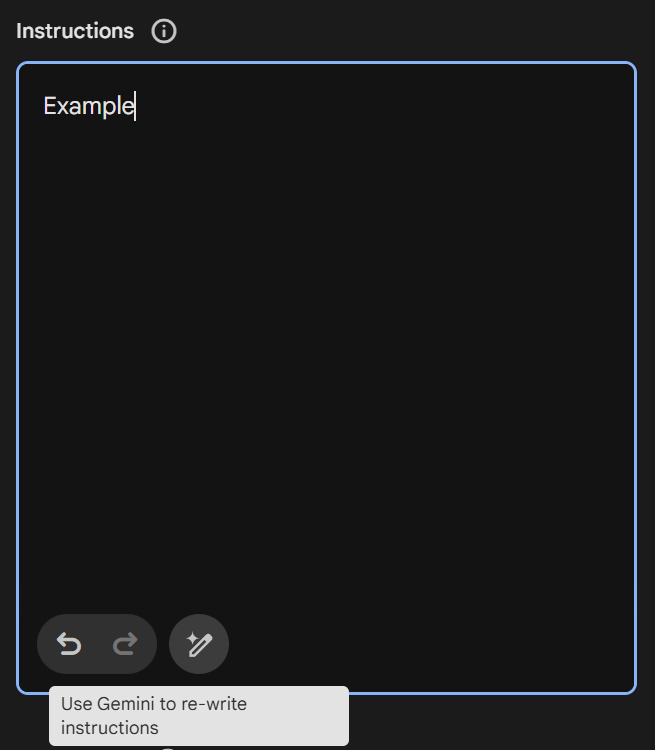
- You’ll see a single configuration screen (there is no conversation mode here, but there is a “magic pencil” button in the “Instructions” field that let you ask AI to re-write/optimize that field)
Name
The title of your Custom GPT. It’s important if you use a lot of different GPTs or are going to share it with other people.
Best practices:
- Be descriptive and specific: “Donor Thank-You Letter Writer” not “Writing Helper”
- Include your organization’s name or department (so it’s easier to find between multiple GPTs you might be using, including GPTs that you haven’t created): “ABC Nonprofit – Grant Proposal Assistant”
- Try to keep it brief for readability
Description
A brief explanation that appears when people browse or use GPTs. A good description is very important if you are going to share the GPT with people that don’t know what the GPT does and how to use it.
Best practices:
- Describe what it does in one clear sentence
- Explain how to use it (what input/data the user should provide and what will happen next)
- Include key capabilities and limitations
Example: “Helps the development team create personalized thank-you letters. Provide info about one specific donor (using text and/or files) and it will generate the final text for the letter.”
Instructions
This is the most important section. These are the detailed directions that control how your GPT behaves.
Structure your instructions in clear sections. For example:
# Role and Purpose
You are an expert donor communications specialist for [Your Organization Name]. Your primary job is to help our development team create heartfelt, personalized thank-you letters and donor communications.

# About Our Organization
[2-3 paragraphs about your mission, programs, and approach]

# Voice and Tone
- Warm and personal, as if written by our Executive Director
- Grateful without being obsequious
- Inspiring and hopeful about our impact
- Conversational but professional
- Avoid: corporate jargon, overly formal language, generic phrases

# How to Interact with Users
1. Always greet users warmly
2. Ask for the following information if not provided:
   - Donor name
   - Gift amount
   - Designation or program supported
   - Any personal connection to note
3. Generate a draft letter
4. Offer to revise based on feedback

# Letter Structure
Every thank-you letter should include:
- Personal greeting using donor's name
- Specific acknowledgment of gift amount
- Genuine gratitude expressed authentically
- Connection between their gift and specific program impact
- A concrete example of how their support makes a difference
- Future vision or next steps
- Warm closing with Executive Director's name

# What You Should Never Do
- Fabricate donation amounts or impact statistics
- Make commitments about how funds will be used without verification
- Include information about other donors
- Generate receipts or tax documentation
- Share confidential organizational information

# Example Letter
[Paste one excellent example here as a reference]
Key principles for instructions:
- Be extremely specific about what you want
- Include examples of good outputs
- Clearly state what the GPT should NOT do
- Use formatting (headers, bullets) to make instructions scannable and easy to understand
- Think through edge cases and address them
Conversation starters
They are pre-written prompts that appear as buttons users can click. They are not available in Gemini Gems.
We don’t recommend using them, they can be more confusing than helpful.
You want users to provide all the relevant context (e.g. a long text or a few files) to provide a valuable personalized response, not just click on a generic conversation starter that doesn’t provide any context.
So generic “Conversation starters” in GPTs are usually the worse way to actually start conversations. Instead, you should use the “Description” field to give instructions to the users and explain the different options or possible uses.
Knowledge (file uploads)
You can upload documents that your GPT will reference when generating responses
A few examples of files that might be relevant for GPTs:
- Annual reports
- Program descriptions
- Impact stories and case studies
- Previous successful communications (as examples)
- Brand guidelines or style guides
- Grant proposals (remove confidential info)
- Mission and vision statements
- Industry reports or frameworks
Best practices:
- Use simple text-based files when possible (the GPT might have more trouble understanding PDFs with lots of images, diagrams or complex formats).
- Name files descriptively (e.g. “2024-Annual-Report.pdf” not “Report.pdf”) and explain briefly each file in your instructions.
- Keep files focused. One short “summary” document is usually better than 5 huge documents where only 10% of the info is relevant to the task. Don’t give AI the chance to get lost in a sea of irrelevant info.
- Don’t upload confidential donor information, financial details, or beneficiary data. Maybe copy the not-sensitive data into a new document that is safe to share. You can also use “find & replace” in editable docs to remove quickly many mentions to your organization’s name or other sensitive info.
- If results are not good, test to ensure the GPT actually uses and understands all the uploaded files (you can ask about specific sections of certain files).
Capabilities
Capabilties are special tools you can enable or disable for the GPT (web browsing, image generation, etc.). If you are not sure of which capabilities are necessary for your GPT, just activate all capabilities and test results. In theory, the GPT is intelligent enough to know when to use (or not use) a certain capability.
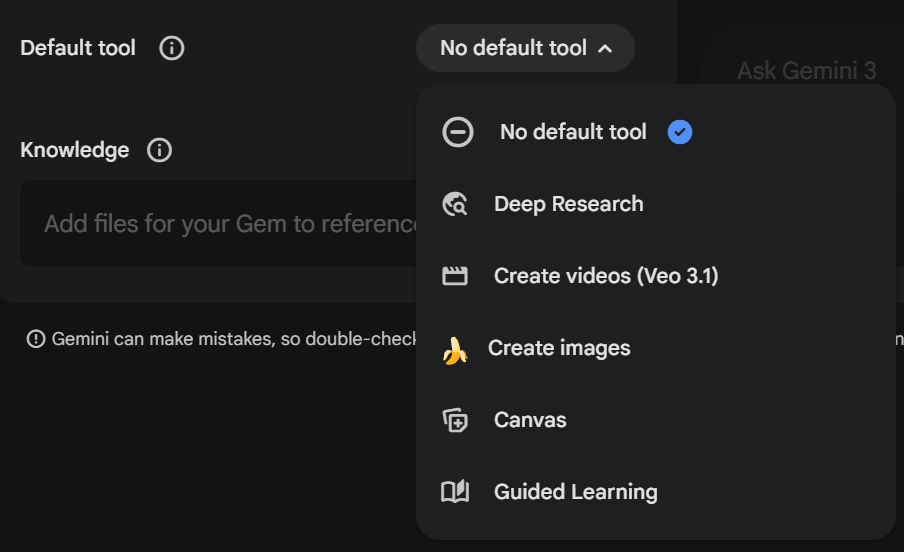
This option is different on Gemini. All tools are available on every Gem, but you can select a “Default tool” for a certain Gem. When you start a new conversation with the Gem, the default tool will be selected. Users can still remove it or select another one. You can choose between Deep Research, Create videos, Create images, etc. Or don’t select a default tool, so it will be a normal chat by default.
Testing your first draft
Before refining further, test your GPT:
- Click the preview pane on the right (ChatGPT) or save and test (Gemini)
- Test edge cases. What happens if you give incomplete information?
- Try to break it. Can you get it to do something it shouldn’t?
- Have a colleague test it. Does he/she understand everything and get good results?
Make note of:
- Where it excels
- Where it misunderstands or fails
- What additional instructions it needs
- Whether uploaded files are being referenced
Then refine the setup if necessary and test again.
Your GPT is probably ready when:
- It handles 80% of use cases well on the first try
- Common errors are addressed
- It saves more time than it takes to use
Remember: You can always update and improve later. Better to launch a good GPT that your team actually uses than to endlessly perfect one that never leaves testing.
Troubleshooting
| Symptom | Likely Cause | Quick Fix |
|---|---|---|
| Ignores instructions | Instructions too buried or vague | Move critical rules to top, use bold/caps, be more specific |
| Too generic | Lacks specific examples and context | Add more uploaded documents, include specific phrases/examples |
| Inconsistent quality | Instructions have contradictions or gaps | Review instructions for conflicts, add explicit requirements |
| Won’t refuse bad requests | No clear boundaries set | Add “Never do X” section with specific prohibitions |
| Asks too many questions | Too many undefined variables | Provide defaults, consolidate questions |
| Doesn’t use uploaded files | Not instructed to reference them | Explicitly tell it to check specific files for information |
| Wrong tone | Tone description too vague | Use comparative examples, specify words to use/avoid |
| Wrong length | No length specified | Add exact word/character counts and structure |
.
5. Sharing and managing your GPT
You’ve built and refined your Custom GPT. Now it’s time to get it into the hands of your team and manage it effectively over time.
Sharing options
ChatGPT
When you’re ready to share, click “Save” and you’ll see three options:
- Only Me (Private): Only you can access this GPT.
- Anyone with a Link: Anyone with the link can use it, even if they’re not in your organization. Use with caution, since the link could be shared beyond intended users.
- Public: Listed publicly in ChatGPT’s GPT Store. Never use this option for organization-specific GPTs with proprietary information.
For most nonprofit use cases, choose “Anyone with a Link.” This gives you decent control over who can access it while making it easy to share with your team.
For very sensitive GPTs, you might want to use the private option. Your colleagues can create their own “copy” of the same private GPT. Or forget about GPTs for sensitive use cases and just share the prompt (“Instructions” field) with your team.
Google Gemini
Gems are a bit different, but they also offer 3 options:
- Private (by default)
- Anyone with the link
- Share with specific users or groups. This is the best option if your colleagues are already using Google services. You can just share it with specific users. It takes a bit more work, but it’s also safer than just giving a link that can be shared without your control.
Sharing best-practices
Step 1: Prepare your team
Don’t just drop a link and expect adoption. Create a brief introduction:
Subject: New Tool: Donor Thank-You Letter Assistant

Team,

I've created a custom AI assistant to help us write more personalized donor thank-you letters faster. It already knows our mission, programs, and voice—you just provide donor details.

What it does:
- Generates personalized thank-you letters in our style
- Incorporates specific program information
- Maintains consistent tone across all team members

How to use it:
1. Click this link: [GPT link]
2. Click one of the suggested prompts or describe what you need
3. Answer any follow-up questions
4. Review and edit the draft it provides

Important: Always review outputs for accuracy, especially donor names and gift amounts.

Try it with your next thank-you letter and let me know what you think!

[Your name]
Step 2: Create quick-start documentation
Even though your GPT should be self-explanatory, it’s a good idea to create a brief guide and add it to your organization’s Knowledge Base.
It could be a short video and/or a one-page doc like this:
[GPT Name]
Quick Start Guide

What it's for: [One sentence purpose]

Who should use it: [Target team members]

Access: [Link]

How to use:
1. [First step]
2. [Second step]
3. [Third step]

Tips for best results:
• [Tip 1]
• [Tip 2]
• [Tip 3]

Common questions:
Q: [Question]
A: [Answer]

Need help? Contact [your name/email]
Step 3: Gather feedback
In the first two weeks:
- Check in with users: “Have you tried the [GPT name] yet?”
- Ask specifically: “What’s working? What’s not?”
- Make it easy to share feedback: Create a simple form, email address or Slack channel
Managing multiple GPTs
As you create more Custom GPTs, organization becomes important.
Naming Convention
Develop a consistent system. Make it easy to identify the relevant GPTs for each user.
For example, you could start the name of every GPT with the department or roles that will use it:
- Development – Donor Letters
- Programs – Impact Stories
- Marketing – Social Content
Keep an inventory:
Create a simple spreadsheet and share it with your team:
| GPT Name | Purpose | Primary Users | Last Updated | Link | Status |
|---|---|---|---|---|---|
| Donor Thank You Writer | Thank-you letters | Development team | Jan 2026 | [link] | Active |
| Grant Proposal Assistant | Foundation proposals | ED + Development Director | Dec 2025 | [link] | Active |
| Social Media Creator | Facebook/Instagram posts | Communications | Jan 2026 | [link] | Testing |
Maintenance and updates
Custom GPTs aren’t set-it-and-forget-it. Plan for ongoing maintenance.
When to Update:
Quarterly reviews (even if no problems):
- Are instructions still accurate?
- Have programs or messaging changed?
- Are uploaded documents current?
- Is it being used as intended?
Immediate updates when:
- Your organization’s mission or programs change
- You rebrand or change voice/tone
- Users report consistent problems
- New use cases emerge
- Statistics or impact numbers are outdated
Version control tip: Before major changes, copy your current instructions to a document. If the update causes problems, you can easily revert.
Measuring GPT success
For any use case, track:
- Time saved: “Writing thank-you letters used to take 2 hours per week, now takes 45 minutes”
- Quality improvements: “Donors commenting on how personal our letters feel”
- Consistency gains: “All team members now produce similarly high-quality content”
- Adoption rate: “6 out of 7 program staff using the impact story GPT monthly”
- Concrete outcomes: “Submitted 3 additional grant proposals this quarter because drafting is faster”
You should always give a link to gather ongoing feedback (via email, form, Slack or whatever tools you use).
Also, you should probably send a survey every 6 months (regarding specific GPTs or all your active GPTs).
Next steps
Get free “AI Superpowers”. If you want premium tools & support, join our membership.
Get help from IA experts. Request a free consultation and get custom recommendations.
Receive new AI tools for nonprofits. Subscribe to our newsletter and follow on Linkedin.