
AI inbox automation for nonprofits (Copy)
1. What is AI inbox automation
AI inbox automation is like having a smart assistant who reads your emails, sorts them, and maybe even replies to some. But it’s cheaper, works 24/7, and never needs coffee.
ChatGPT is amazing, but copying and pasting emails into it all day is exhausting. You’re essentially trading one manual task for another. Real automation means the AI does the work without you being there.
What good AI inbox automation can do
- Reads incoming emails and tags them instantly (donations, volunteers, press inquiries, etc.)
- Flags urgent messages that need human attention
- Sends appropriate auto-replies to common questions
- Drafts personalized responses you can review and send in one clic
Why nonprofits need this
Nonprofits face unique email problems that automation solves:
- Limited staff. Email management can easily eat 3-4 hours a day, leaving no time for actual work. Automation frees up these hours for mission-critical tasks.
- Repetitive questions. You probably get the same questions repeatedly. AI can answer them automatically with consistent, professional responses.
- Tight budgets. You can’t hire more staff. But you can deploy automation for a fraction of the cost. Sometimes free or under $20/month for basic triage and auto-replies. The ROI is immediate.
- Inconsistent responses. When different people handle donor emails, the tone and information vary. This hurts your brand and donor experience.
- Response time matters. Donors and volunteers expect quick replies. If an email sits in someone’s inbox for days, that person’s motivation drops. AI can send automated replies or route emails to the right person almost instantly.
Benefits
With AI inbox automation, you gain:
- Time savings. Nonprofits can recover 15-30 hours/month in staff time just from automating routine email triage and replies.
- Consistent results. Every email gets handled the same way. No more variance in tone, information quality, or routing decisions.
- 24/7 operation. Your email system works nights and weekends. Volunteers who email on Sunday get an immediate response. Donors get acknowledgment even if your team is offline.
- Better prioritization. Important emails rise to the top. Automated routing means urgent inquiries or issues go straight to the right person instead of getting buried in a generic inbox.
- Scalability without hiring. As your nonprofit grows, email volume grows with it. Instead of hiring more staff to handle more emails, automation scales for nearly zero extra cost.
2. Types of AI email tools
There are dozens of AI tools focused on email management or that could be used for this task. Most fall into three main categories, each solving different problems.
A) Email client with AI
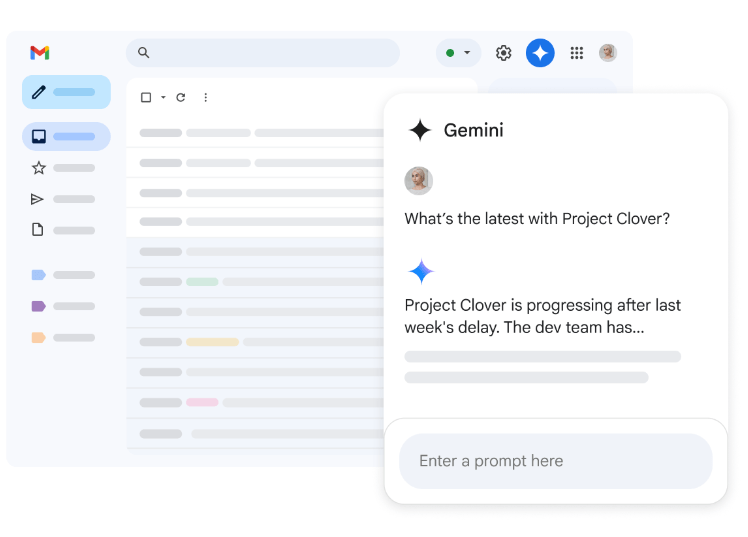
You can use AI features integrated inside your email system (Outlook, Gmail, etc.).
They can be:
- Native features from your own system (for example, Gmail has many native AI features)
- Third-party plugins that add AI features to your existing inbox
Depending on your goals, you might want to use only the native features, add a simple plugin that’s great for one specific task, a more complex plugin that does many tasks, or even mix different plugins. For example, if many of your emails are for scheduling meetings, you might want to use an AI scheduling/calendar tool like Reclaim.ai or Clockwise.
What they do: Auto-sort emails, suggest replies, schedule send times, summarize long threads.
Popular tools:
- Superhuman: Fast email client with AI triage and auto-responses
- SaneBox: AI-powered filtering that learns what’s important
- Shortwave: Gmail interface with AI summaries and search
- Inboxzero: AI email assistant with open-source version
We can also include here AI chatbots with email integration (e.g., Perplexity’s and Gemini’s integrations with Gmail). They usually can’t do all email tasks (e.g., sending emails) and require more clicks/work (you have to open the chatbot, write a prompt, and activate the email integration/source), but might be useful for certain tasks that require more “intelligence” (e.g., complex summaries of certain emails) or follow-up tasks that you want to do with chatbot help.
Best for: Small teams who want to upgrade their current email setup without learning new platforms.
B) Customer service platforms with AI
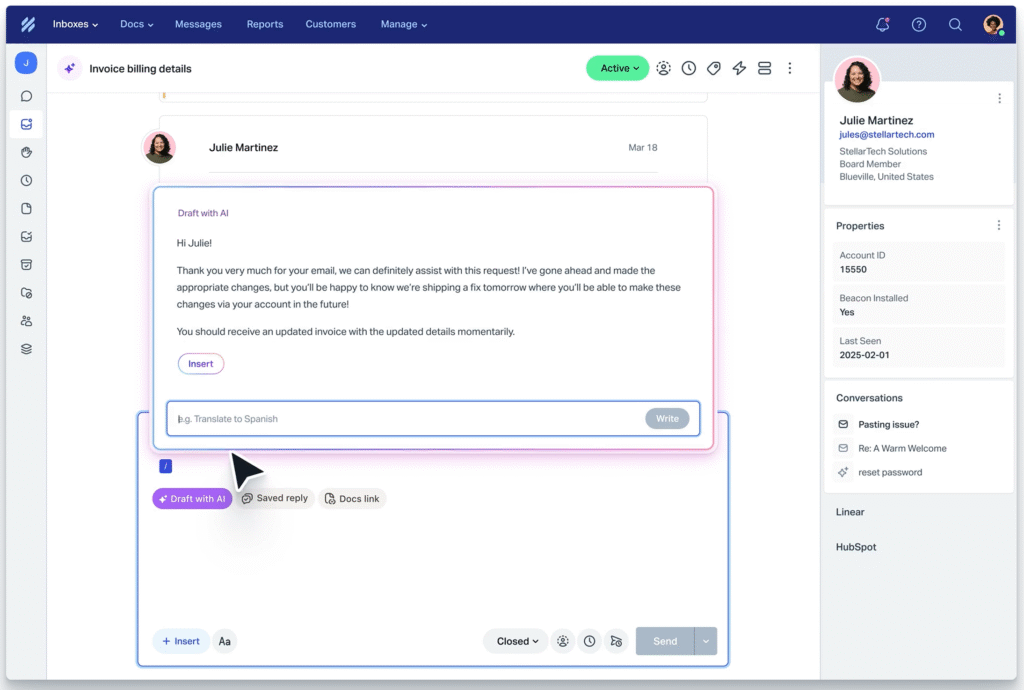
These are built for managing high volumes of inquiries.
Some of those tools (especially help-desk systems) can generate auto-replies based on your knowledge base or other internal documents. This could be a huge time-saver for organizations that receive hundreds of “repetitive emails” per week.
What they do: Centralized inbox for multiple email addresses, automated ticket routing, AI-generated replies, team collaboration features.
Popular tools:
- Zendesk: Full customer service suite with AI agents
- Help Scout: Simpler interface, AI-powered responses
- Front and Missive: Shared inbox with AI features
We can also include here CRM and donor management tools, since some of them include AI features to classify emails and leads, send auto-replies or automatic follow-ups (sometimes personalized with AI), etc. But they are usually more focused on sending emails, not so great for managing an inbox or generating auto-replies based on your knowledge base (that’s also true for sales/outreach tools like Saleshandy, Apollo.io, etc.).
Best for: Nonprofits handling hundreds of emails daily across multiple programs or departments.
C) No-code automation platforms
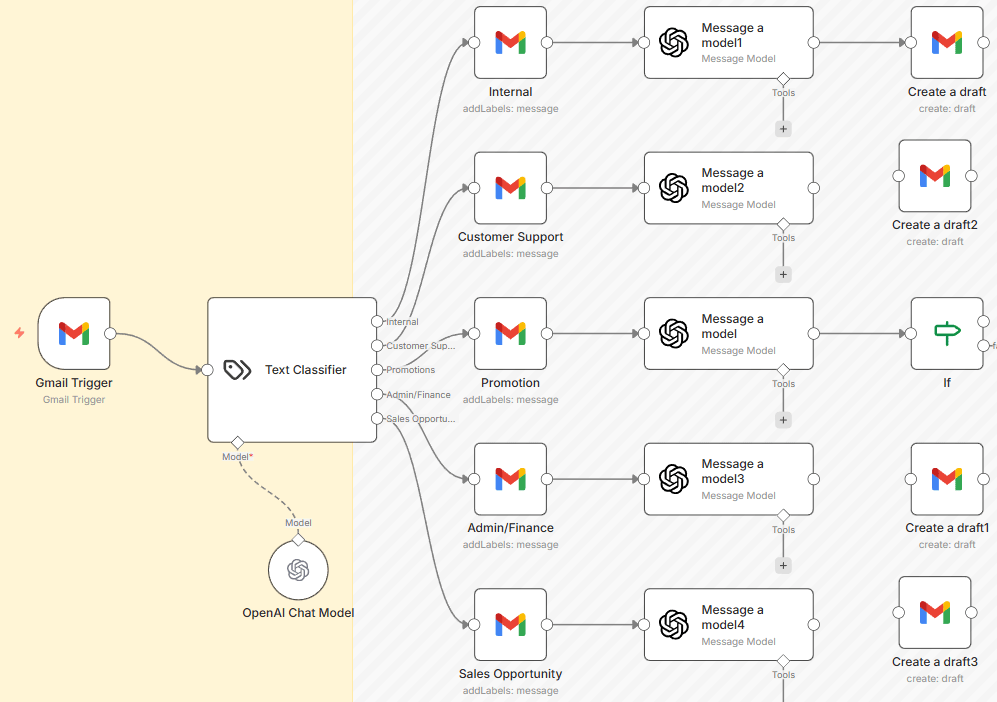
These let you build custom workflows: “When email related to donations arrives → do X, Y, Z.”
What they do: Connect your email to other tools (your CRM, database, calendar, etc.) to trigger actions based on email content, with fully customizable logic.
Popular tools:
- Integration tools (Zapier, Make, n8n, etc.): You can build custom workflows with their visual editors and include AI tasks wherever you want, using the models and prompts that you want.
- AI agents (Lindy, Bardeen, Relay.app, etc.): You tell them what you want to achieve (and sometimes which tools they could/should use) and they try to do those tasks autonomously. Most agent platforms offer integrations with email tools and sometimes even templates already designed for inbox automation.
Integration tools are usually more reliable and cheap.
AI agents are more flexible. They can do some things that are impossible or very difficult to configure and maintain with the predetermined workflows of integration tools.
Some of these tools offer templates (e.g. n8n templates for inbox automation and Make templates for inbox management), so you don’t have to start from scratch. Maybe you can reuse a template with just a few clicks to add the appropiate connections/credentials and personalize it a bit.
Best for: Organizations that want maximum flexibility and already use multiple tools (e.g., email + CRM + donation platform + Slack).
Quick comparison
| Type | Setup time | Flexibility | Best use case |
|---|---|---|---|
| Email add-ons | 10 minutes | Low | Quick wins, small volume |
| Service platforms | 1-2 days | Medium | High volume, team collaboration |
| No-code automation | 1-5 days | High | Custom workflows, multi-tool integration |
How to choose the right tool
- Start with your biggest pain. What email problem causes the most staff frustration? Is it inbox chaos (triage)? Slow first-time responses (auto-reply)? Fragmented donor data (CRM)? Pick one. Solve it first.
- Integrate with what you already use. For example, if your nonprofit uses Google Workspace, pick tools that plug into Gmail natively. If you use HubSpot, extend it with HubSpot’s own email tools. Fewer integrations = fewer things to break.
- Test the learning curve. Your staff will need to use this system. If it’s too complex, it won’t get used. Try the free tier or request a demo.
3. Implementation checklist
Here’s your step-by-step roadmap:
Phase 1: Prepare
1.1. Audit your current email situation
Spend a few hours analyzing what actually happens in your inbox. Use a simple spreadsheet:
- What types of emails do you get? (donations, volunteer inquiries, general questions, etc.)
- How many of each type per day?
- Which ones take the most time?
- Which ones are basically identical? (“How do I donate?” asked 15 different ways)
This is like taking inventory before reorganizing a closet. You need to know what you’re working with.
1.2. Document your 5-10 most common email scenarios
For each frequent email type, write down:
- What the email usually asks
- What your current response is
- Whether it needs human judgment or could be automated
Example:
- Type: Donation question
- Common ask: “Do you accept stock donations?”
- Current response: [paste your usual reply]
- Automation potential: High (answer never changes)
1.3. Define your “no-go” zone
Decide clearly what AI will never touch. High-stakes donor complaints, legal issues, or sensitive personnel matters should always be 100% human.
1.4. Choose your tool
Use the guide from the previous chapter. Maybe test a few different tools before taking a decision.
Phase 2: Set up the first automation/s
2.1. Create a test account
Do not test this on your CEO’s inbox. Create a temporary email (e.g., [email protected]) and use your personal email to act as the external stakeholder (donor, volunteer or whatever is relevant).
2.2. Create email categories/tags
Most automation starts with sorting. Set up 5-10 categories. For example:
- Donations
- Volunteer inquiries
- Program questions
- Press/media
- Urgent
- General/other
2.3. Create the triage rules
Create an AI prompt that “teach” your system to recognize different email types and put them into the categories you configured.
Current AI models (LLMs) are pretty good at categorizing text, even without detailed instructions. But you can mention specific keywords or other patterns to make it more reliable and personalized (e.g. emails coming from “@ourpartner.com” or mentioning “Urgent” in the subject must be always classified as Urgent).
2.4. Include response templates and/or iother instructions
You probably should include in the prompt that will manage the responses some custom instructions.
Start with the questions you answer most often with the same responses.You can just copy them from previous emails you wrote. Maybe ask AI to help you generalize or optimize those texts.
You might want to include some generic instructions for the AI system, especially if it will have to manage many different types of emails or responses. You can include:
- Your tone (formal, friendly, neutral)
- How to greet donors/partners/volunteers
- What never to do (never promise funding, never delete emails, etc.)
- How to prioritize messages (urgent / important / low priority / ignore)
☐ Use the “draft only” rule
If possible, configure your automation to save as draft rather than send immediately. This lets you do a quick review and correct possible mistakes before sending anything. You get 90% of the productivity improvement with 0% of the risk.
If you decide to send auto-replies with AI (instead of just creating the drafts), you should probably also add specific rules for emails that should NEVER get auto-replies. For example:
- Complaints or concerns (especially if they contain “angry language”)
- Press requests
- Anything tagged “urgent”
- Emails coming from “key stakeholders” (major donors, board members, etc.).
Configure these to notify you immediately (email, Slack, text—whatever you’ll actually see).
☐ Stress test it
Send an email to your test address with a tricky question. See how the AI drafts the reply. Does it sound robotic? Did it hallucinate a program you don’t offer? Tweak the prompt until it gets it right.
Phase 3: Refine (ongoing)
3.1. Review and adjust weekly for the first month
Block 30 minutes every Friday:
- What got miscategorized?
- Which auto-replies felt awkward?
- What new patterns are you seeing?
Update your rules based on what you learn.
3.2. Track your results
Measure the before and after:
- Hours spent on email per week
- Response time to inquiries
- Staff & stakeholder satisfaction
This data justifies the tool cost and proves ROI to your board.
3.3. Train your team
If others use the same inboxes or automations:
- Show them a 5-minute demo of the new workflow
- Explain what the AI does and what it doesn’t do
- Give them permission to override auto-replies when needed
- Encourage them to flag mistakes so the system keeps improving
3.4. Update templates & knowledge regularly
If your automated replies use data that changes frequently (events, calendars, programs, etc.) you should connect your AI systems to the current data (e.g. Google Sheets or Google Calendar) or update the prompts frequently.
Assign one person as the “automation owner” + program frequent reviews and updates.
4. Advanced strategies
Only move to these once your basics have been humming smoothly for at least a month. Small automations that are almost 100% reliable are infinitely better than ambitious automations that are 40% broken.
- Smart routing: Route emails to the right staff automatically (e.g. Donor questions → fundraising lead, Volunteer requests → programs team, etc.). It can be done with Gmail filters + AI classification or in shared-inbox tools.
- Multi-language auto-drafting: If you sometimes get emails in Spanish, English, or another language, use AI to detect language → draft response in the same language → send for review. Huge time saver for international or multicultural nonprofits.
- Automated follow-ups: AI can send personalized reminders when people don’t reply (instead of the generic templates you may be using now).
- Custom alerts: Instead of treating all emails equally, use AI to “read the room”. AI can scan incoming emails for “angry” or “urgent” emotions, flag it as urgent and alert you immediately (could be an SMS or a Slack message if you are using tools like Zapier, Make or n8n for this inbox automation).
- Add summaries to your CRM: When a donor emails you, the AI can summarize the conversation and save it as a “Note” in their CRM profile automatically. This helps you save time and improve relationships (you don’t have to read every email to remember all the context, just check the brief notes).
- Create automatic digests: Have the AI send you a daily/weekly summary with of the most important topics/emails. Maybe also include key email metrics (you received 45 emails, 13 about volunteering, 5 angry donors, etc.).
5. Common risks and pitfalls (and how to avoid them)
The biggest risks come if you use AI to reply automatically to emails. Other AI tasks (categorizing or summarizing emails, creating drafts, etc.) usually have much lower risk. So if you’re very worried about risks, you should probably not use auto-replies at all and focus on the other uses. You can still get a lot of value by receiving automated drafts and other AI help.
- Over-automation: Automating too much too fast makes your inbox unpredictable. Consider starting with one workflow (one specific task for one low-risk folder/tag) and expand only when it’s stable. Also, be careful if you mix different AI tools for the same inbox (more tools = more cost, more complexity, and more breakage).
- The “robot” voice: Your automated emails may sound generic, cold, or overly corporate. Update your prompts with your organization’s specific tone (e.g., “warm, grateful, casual”) and provide examples of past emails.
- Auto-replying to sensitive situations: Someone emails a serious complaint or crisis and gets a chipper automated response, destroying trust instantly. Flag (don’t auto-reply) anything containing complaint words, legal terms, or specific staff names; use confidence thresholds where AI must be 80%+ sure before auto-replying.
- Context blindness: Treating a major donor or board member like a stranger. Create a “VIP list” of email addresses. Configure the automation to stop auto-replies (and flag as important) if the email comes from someone on that list.
- Lack of transparency: Users might get mad if they get an email from a “person” but it’s really a 100% AI-generated message. Even more so if it contains mistakes. You could avoid this by adding a header or footer that says something like “This is an automated email, designed to give you a quick response. If you’re not happy with the response or still have questions, please reply to this email and our staff will contact you soon.”
- Creating email loops: Your automation replies to someone’s auto-reply, which triggers their system to reply again, creating an infinite loop that burns money and looks incompetent. Never auto-reply to “Out of Office” subjects, check for “Auto-Submitted” headers, and limit responses to 1 per person per 24 hours.
- No alerts or backup plan: Your automation tool crashes and emails stop processing for three days before anyone notices. Set up daily monitoring emails (“X emails processed today”), keep checking your inbox manually for the first month, and test your backup plan monthly by turning automation off for a day.
- Forgetting about data privacy: You’re sending sensitive donor information to AI services that might store or train on it, risking privacy and compliance violations. Use AI services with data privacy agreements, filter out emails with keywords like “SSN” or “confidential,” and disclose AI usage in your privacy policy.
- Setting it and forgetting it: Your automation keeps sending people last year’s program info, dead links, and outdated phone numbers because nobody maintains it. Calendar frequent reviews, immediately update auto-replies when your website/programs change, and assign one person as the “automation owner.”